
The FieldOps app · Android phone and tablet
The job, captured on site.
One app for the technician and the owner. The job and everything captured on it live on the phone, and the app keeps working where the signal doesn’t.
The screens follow a job in the order it runs: the day’s list, the client, the work on site, the close-out, the owner’s review and the invoice. The last screen is the technician’s own view.
These are real screens from a demo business, not mock-ups.
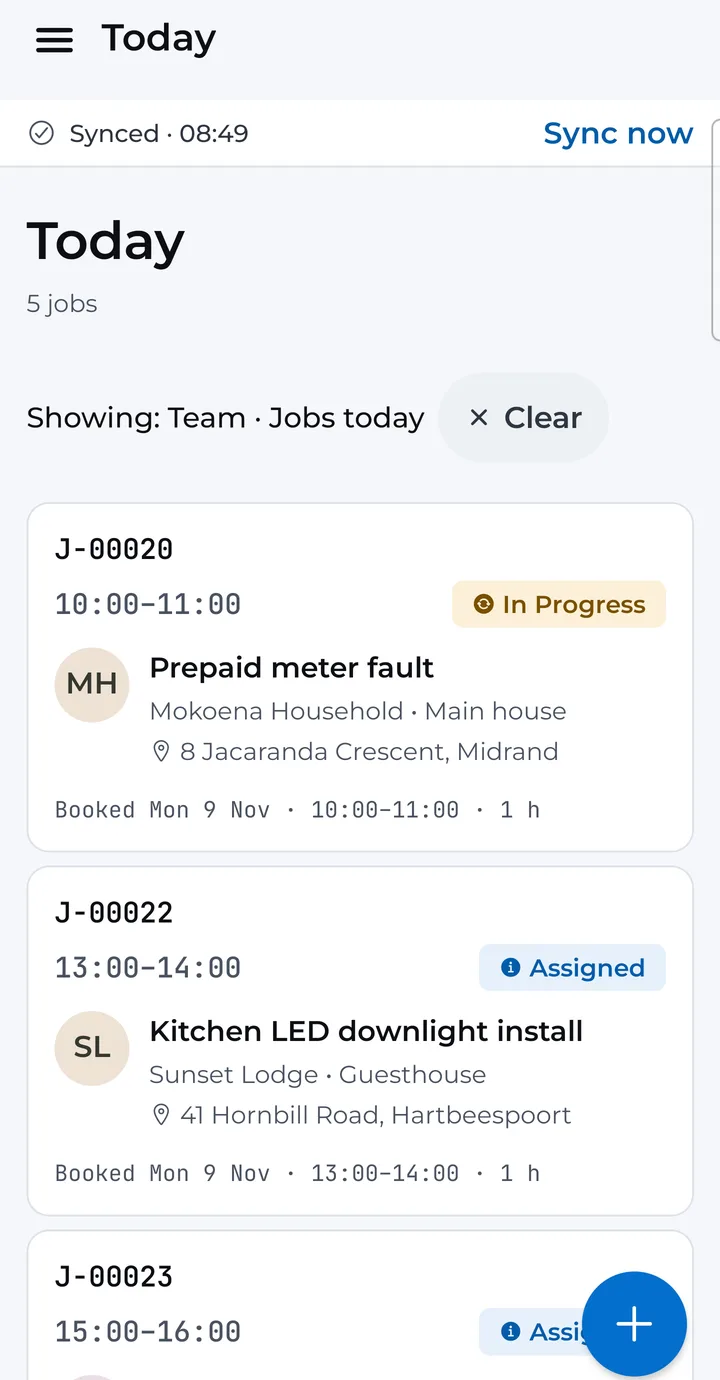
01Today
The day's jobs on the phone, each with its client, site and status.
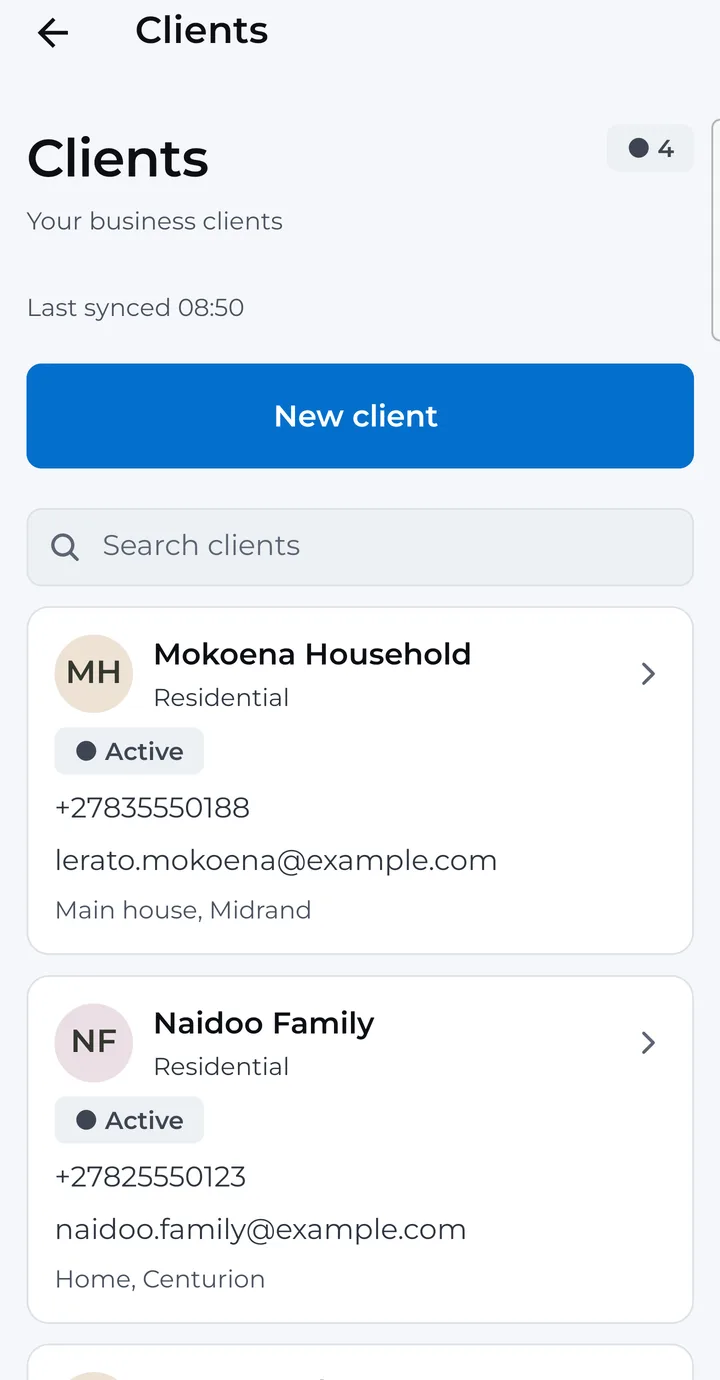
02Clients and sites
Every client, with their sites and jobs, in one place.
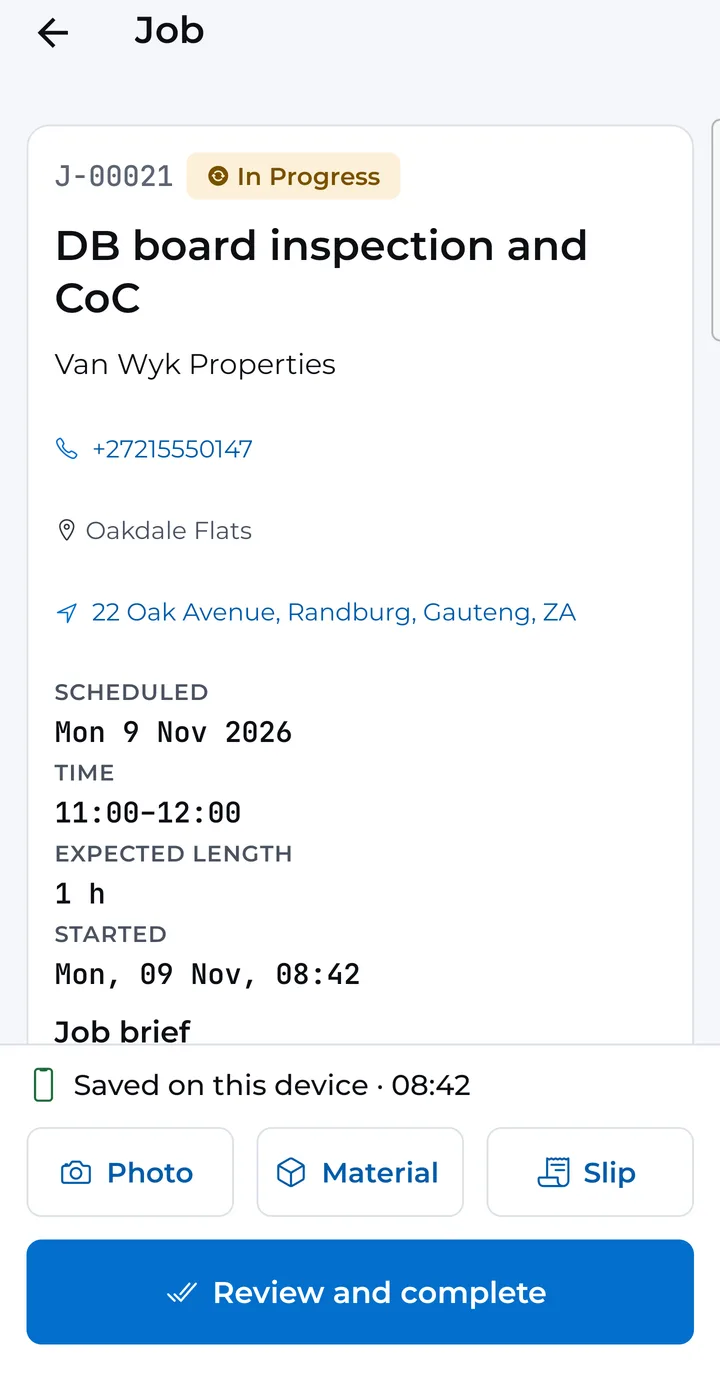
03The job
Photos, materials and slips added on site, saved on the phone first.
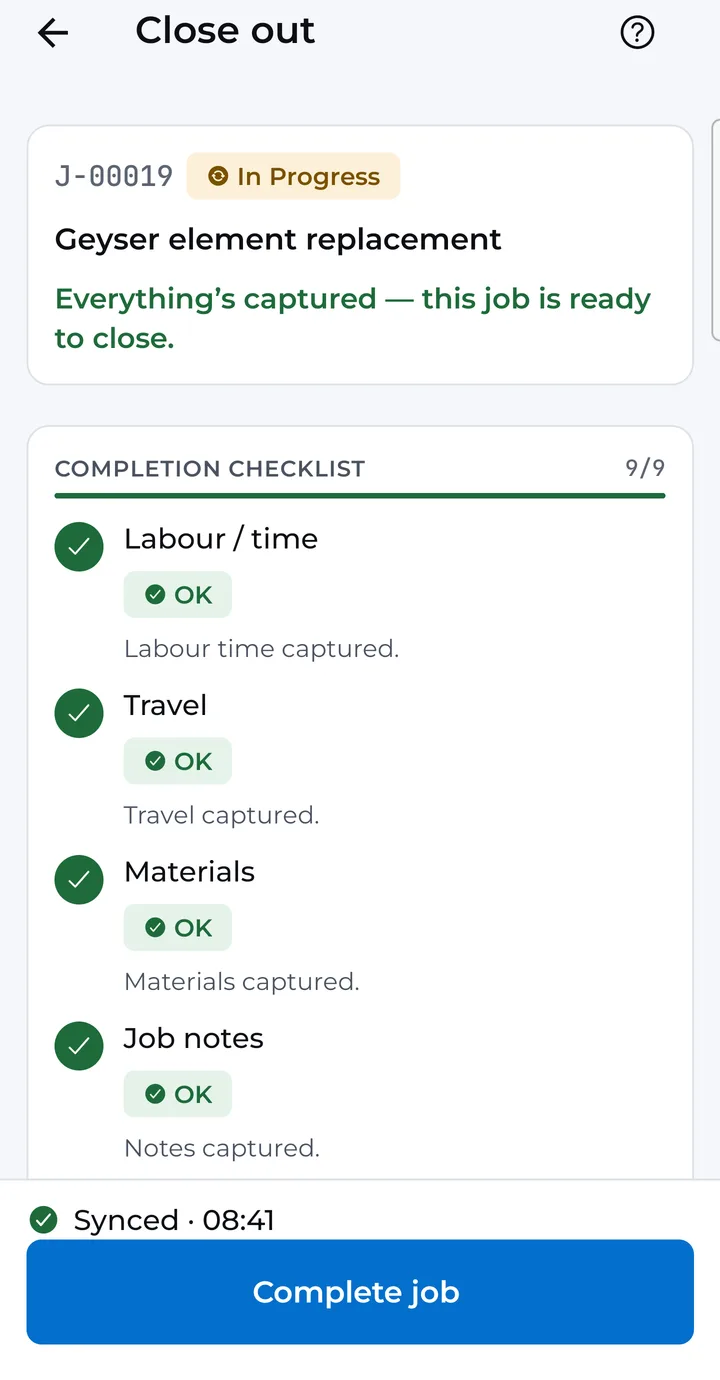
04Close-out
Time, travel and materials checked before the job is completed.
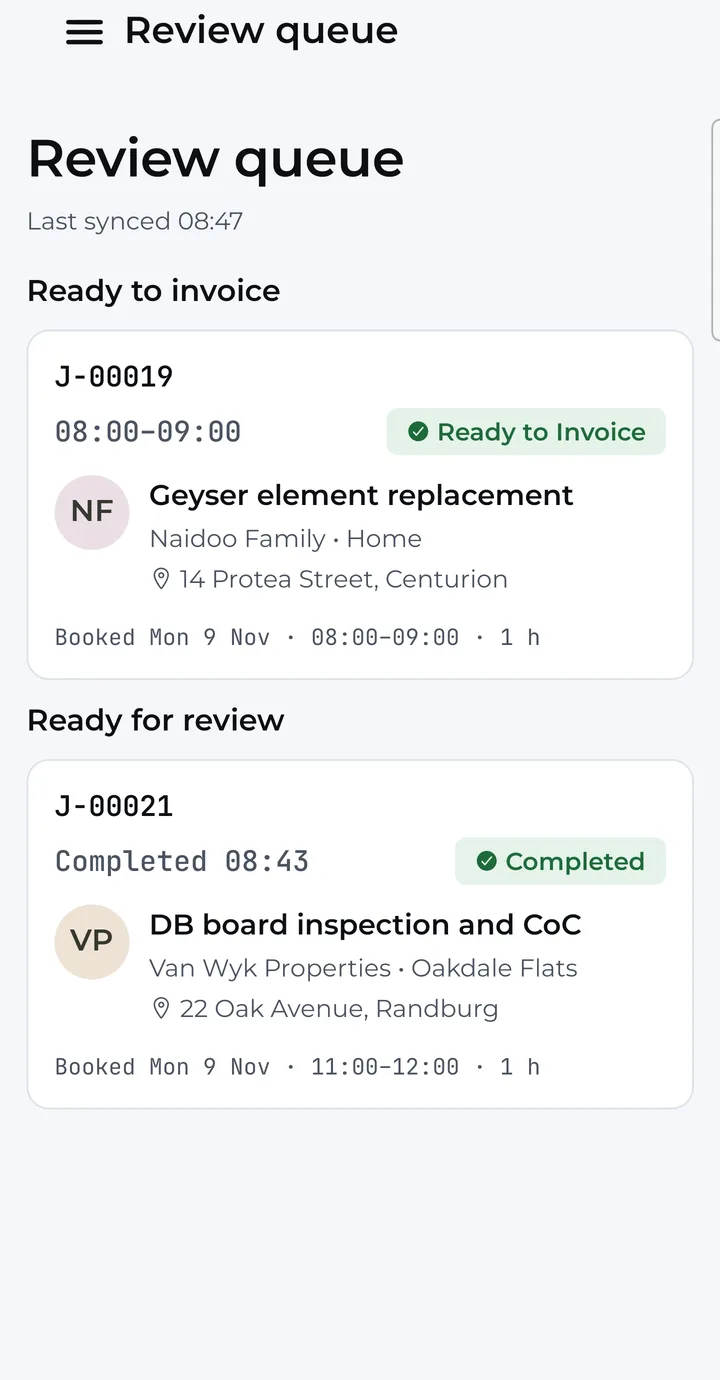
05Review
The owner checks what was captured before approving the job.
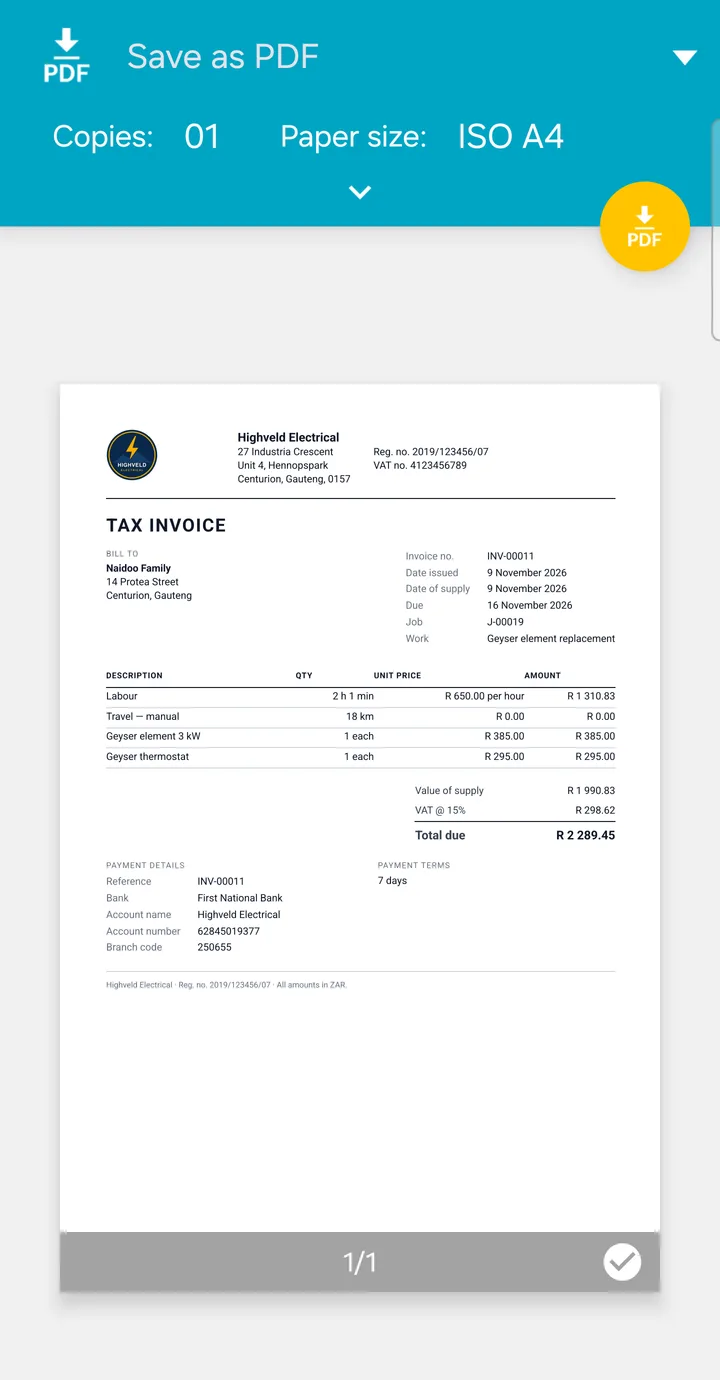
06Invoice
A South African tax invoice from the captured work, shared as a PDF.
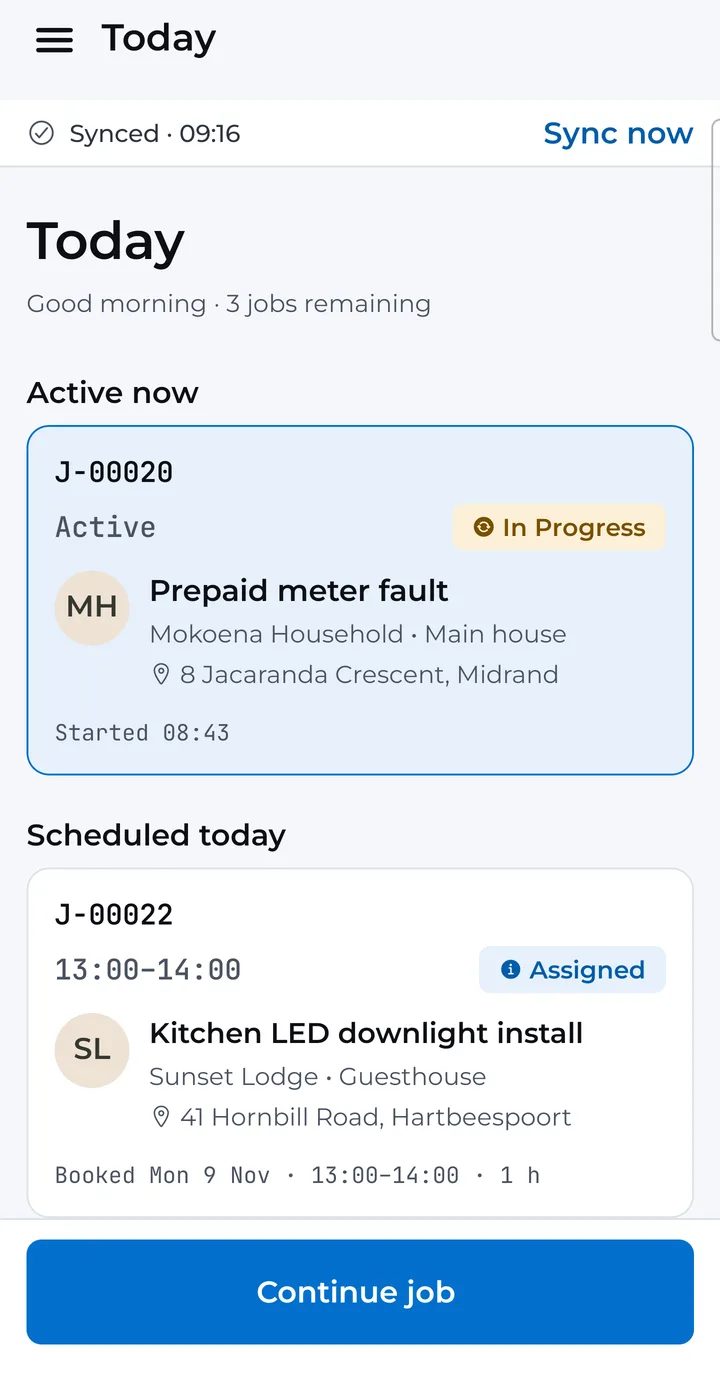
07The technician's day
The technician sees their own jobs, synced to the phone.
On the tablet
The same app, on a bigger screen.
The owner’s tablet runs the same app with the same jobs: the dashboard, the day’s list, each job and the clients.
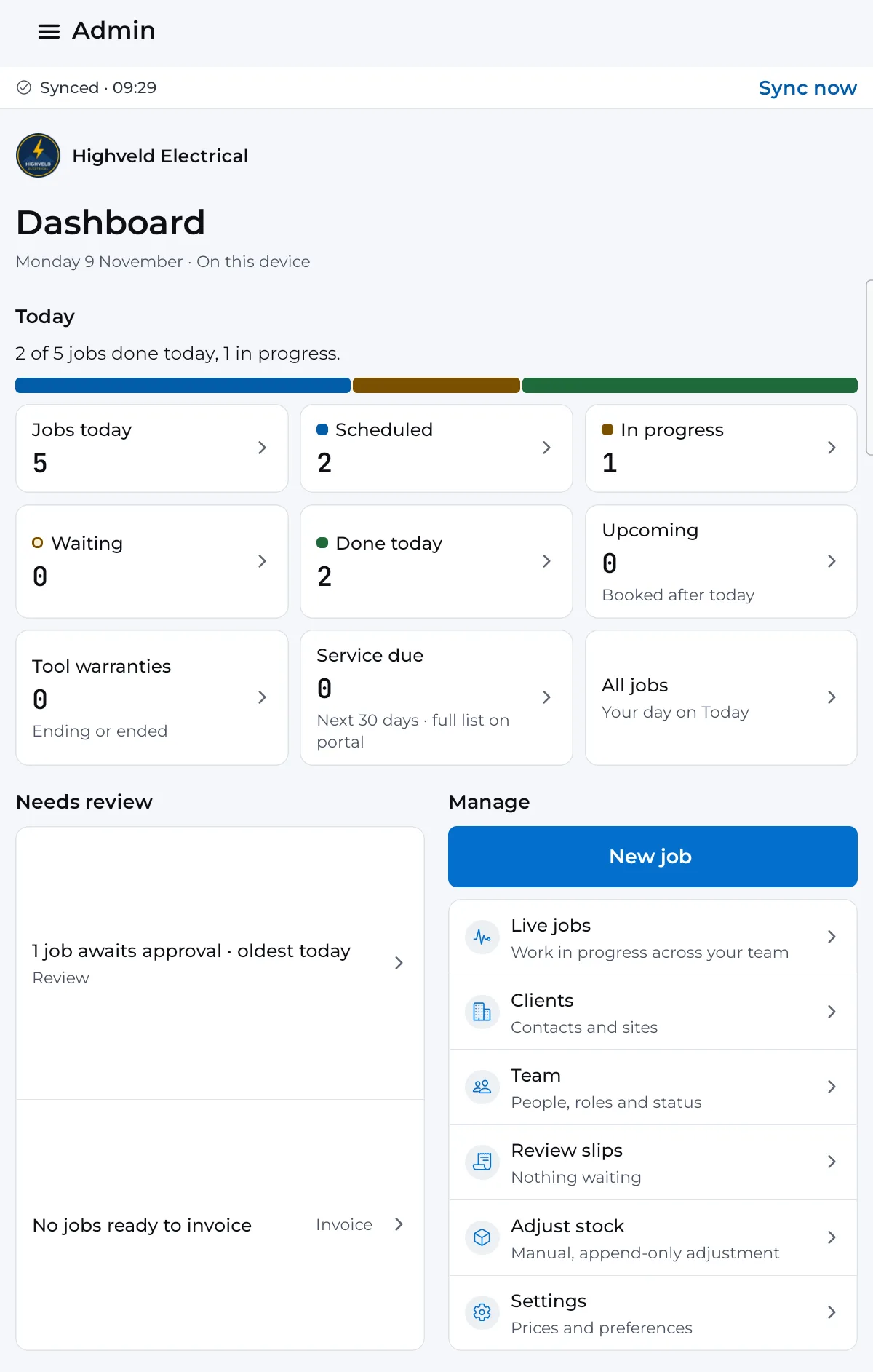
01Dashboard
What needs review, what is ready to invoice, and the slips waiting to be checked.
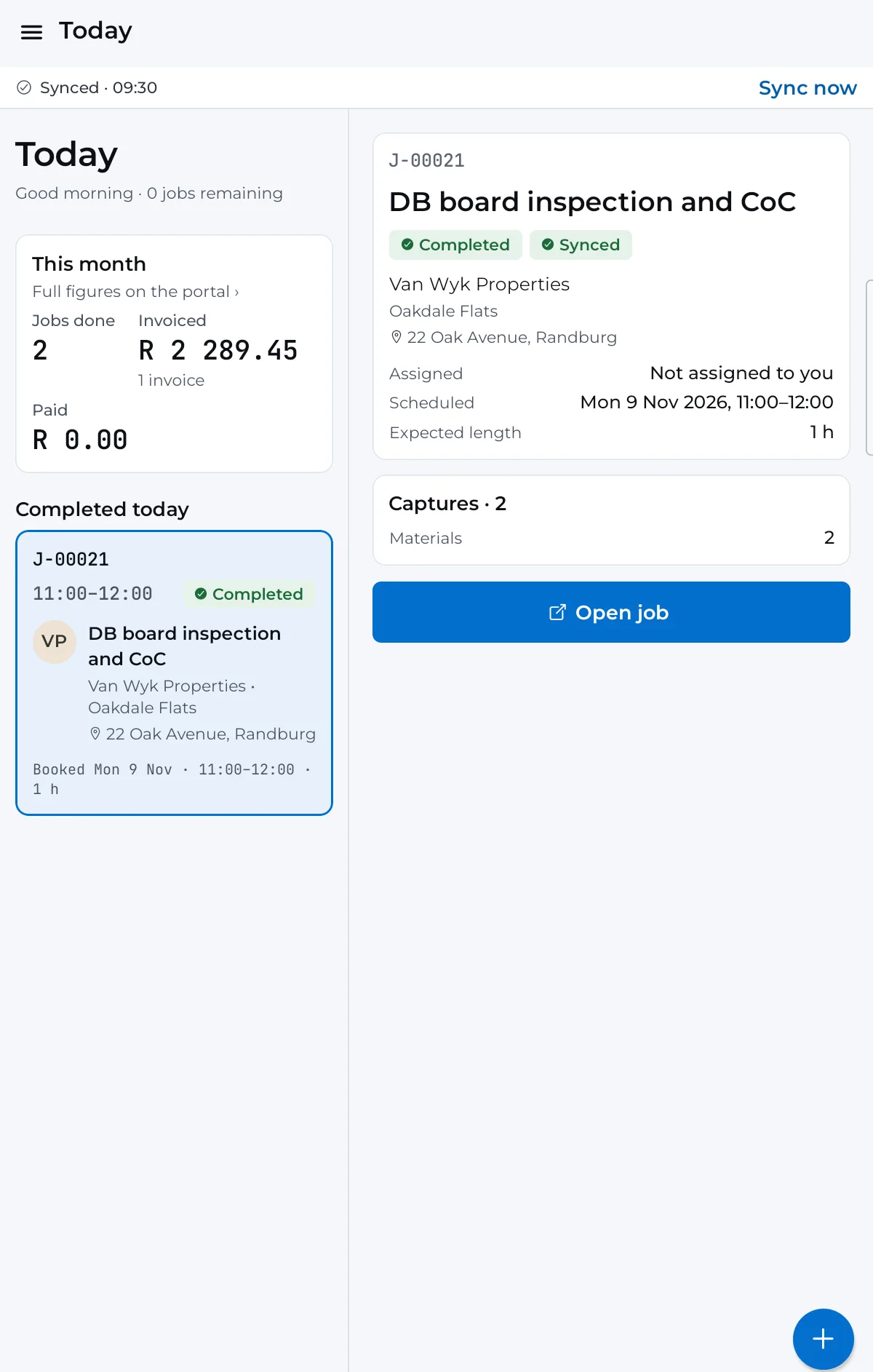
02Today
The day's jobs on the tablet, the same jobs as on the phone.
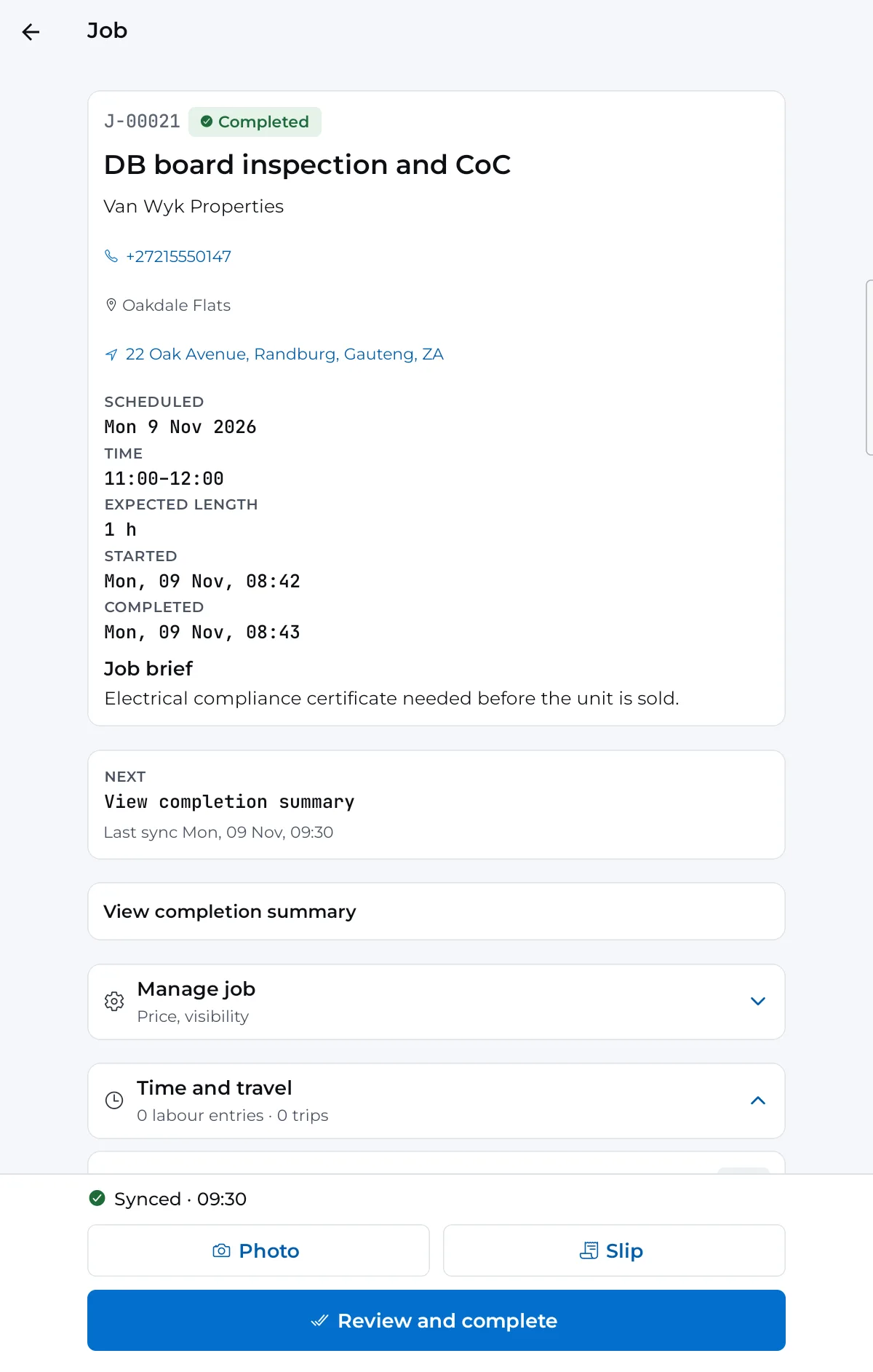
03The job
Every job and what was captured on it, signal or not.
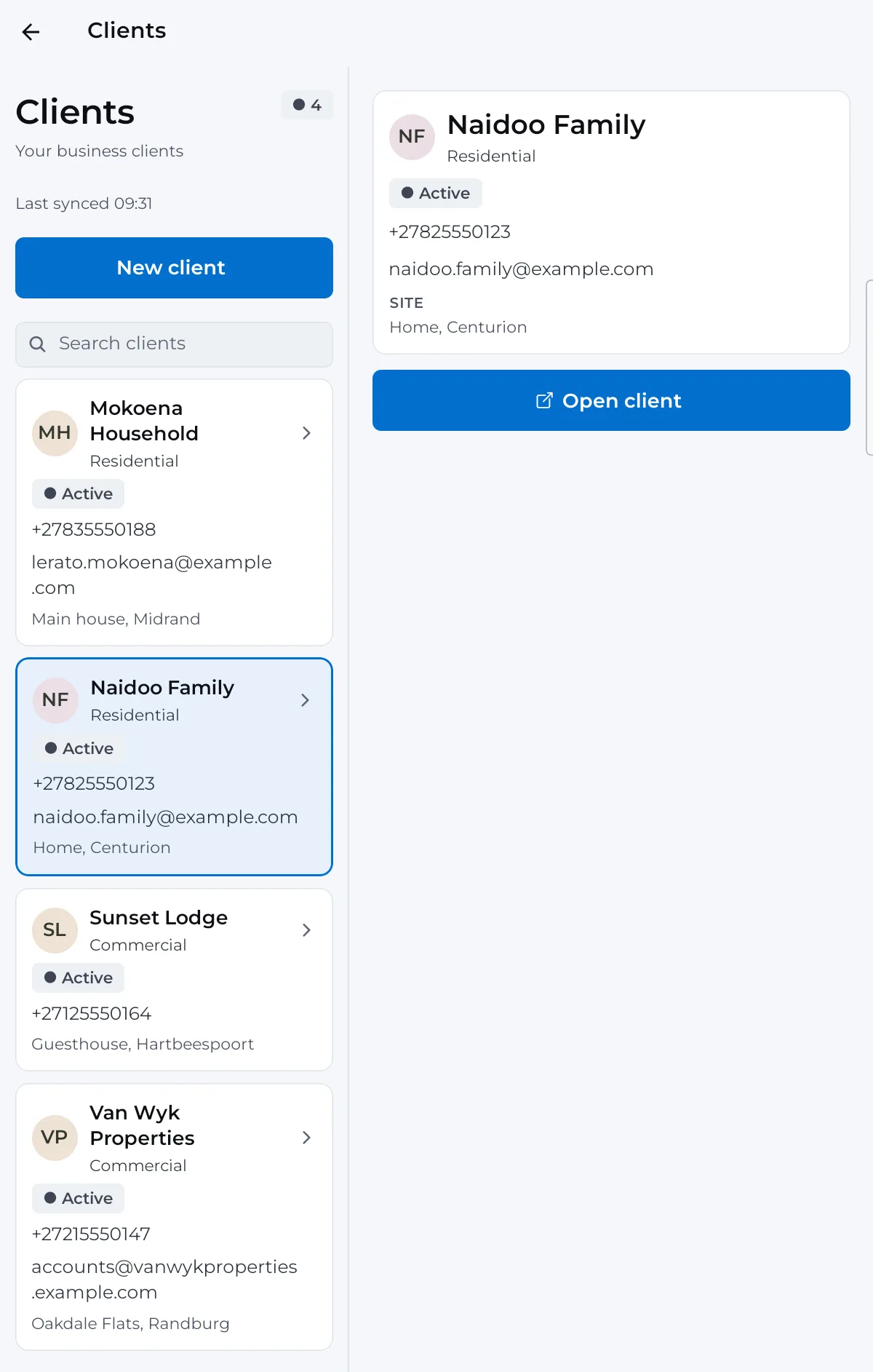
04Clients and sites
Clients, their sites and their jobs on the bigger screen.
Supplier slips · Read by AI
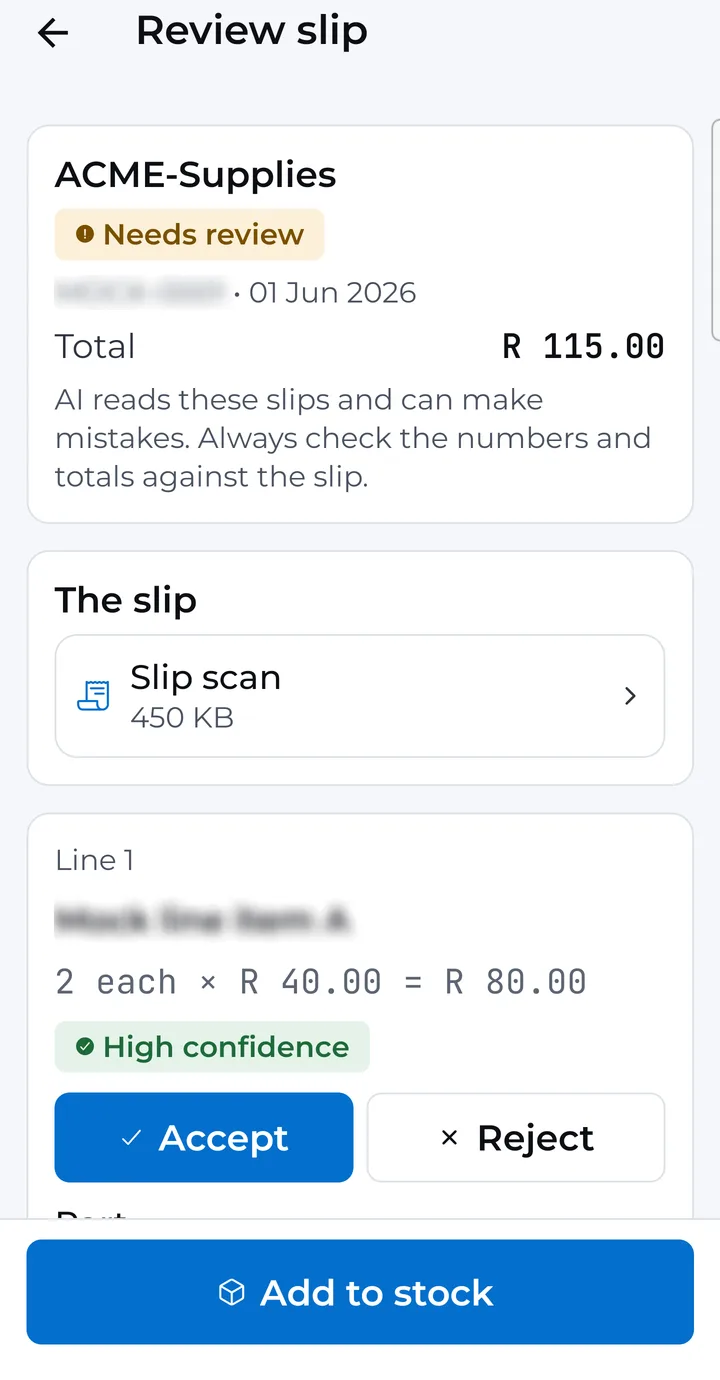
Photograph the slip. The app reads the lines.
Take a photo of the supplier’s slip or invoice. AI reads it line by line, and the owner checks the lines before they go into stock or onto the job.
- Till slips, handwritten slips and printed supplier invoices
- Supplier, items, quantities and prices read for you
- Nothing reaches stock until the owner has checked it
- Into stock, or onto the job it was bought for
Slip reading comes with the Team and Pro plans, subject to the plan's monthly limit.
See it on your own jobs.
Android now, iPhone later. We set up your business and invite your team.
Not yet
So that nothing on this page outruns the app in your technician’s pocket:
- Sending WhatsApp messages or customer links for you — today you copy a ready-made message and send it yourself
- Quotes
- Posting supplier-slip lines to stock with no owner check
- An iPhone version